

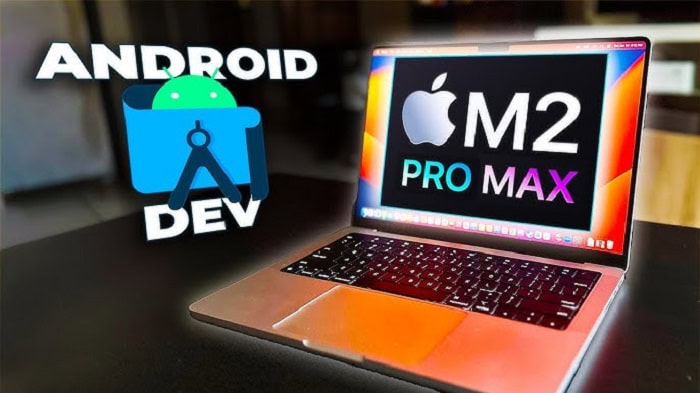
Android applications are an excellent and enjoyable area to work in, but without a well-optimized development environment, development can quickly become frustrating. On macOS, developers benefit from a stable, developer-friendly system, but poorly configured setups can lead to sluggishness, laggy Android emulator Mac performance, and prolonged build times. Ensuring a smooth environment is essential for productive development and reliable Android automation.
System Requirements and Preparation
To become an efficient Android developer, it is crucial to meet the minimum requirements that enable one to work effectively with the required items, such as a Mac.
Minimum Hardware Specs:
- Processor: Apple Silicon (M1/M2/M3) or Intel i5/i7 or higher
- RAM: 16 GB (at minimum, 8 GB is acceptable, but it is not advisable when working on light projects)
- Storage: SSD of 100 GB or more with available space
- macOS Version: macOS Monterey (12) or newer
Clean Up macOS:
- Uninstall the apps and files that are not used
- Stop those startup items you do not require
- Apply a system monitor such as iStat Menus to monitor the CPU, RAM, and Disk usage
Installing Android Studio the Right Way
Visit the developer.android.com site and obtain Android Studio. Do not plug in third-party mirrors or old ZIP files.
Installation Steps:
- Download macOS latest stable macOS release.
- Install it through the .dmg installer.
- Open Android Studio and have it install the SDK, AVD, and others.
- In case you are on Apple Silicon, make sure not to download the Intel version instead of the Apple Silicon version.
SDK Installation:
- Always choose a custom installation to specify the SDK path (~/Library/Android/sdk)
- Install additional tools like:
- Android SDK Command-line Tools
- Intel x86 Emulator Accelerator (HAXM) for Intel Macs
- Android Emulator
Optimizing Android Studio Performance
Android Studio can be resource-hungry. Tuning its performance is key to a lag-free experience.
Memory Settings:
Navigate to Help > Edit Custom VM Options and update:
-Xms1024m
-Xmx4096m
-XX:MaxPermSize=1024m
-XX:+HeapDumpOnOutOfMemoryError
-XX:+UseG1GC
For M1/M2 chips, adjust memory carefully based on your RAM availability.
Disable Unnecessary Plugins:
Go to Preferences > Plugins and disable:
- Kotlin Multiplatform (if not using it)
- JavaScript support (if not needed)
- TensorFlow Lite plugin (if not using ML)
UI Performance:
- Turn off unnecessary animations: Preferences > Appearance > UI Options
- Use the Darcula theme for better performance on OLED screens
Using Physical Devices vs Emulators
While emulators make great testers, poor configuration of an android emulator for Mac can result in slow performance. Using real Android devices strategically can reduce lag, improve responsiveness, and enhance Android automation testing workflows.
Setting Up a Real Device:
- Enable Developer Options on your Android device.
- Turn on USB Debugging.
- Connect via USB or over Wi-Fi using adb connect <ip-address>.
- Use adb devices to verify the connection.
Configuring a Lag-Free Emulator
If you must use an emulator, proper configuration is critical.
Recommended AVD Configuration:
- Device: Pixel 5 or 6
- Image: x86_64 System Image with Google APIs
- Graphics: Hardware – GLES 2.0
- RAM: 4096 MB
- Internal Storage: 4 GB minimum
- Enable “Cold boot” only when necessary.
Enable Hardware Acceleration:
- For Intel Macs: Install HAXM
- For Apple Silicon: Use ARM64-based images (non-HAXM)
Use Quick Boot:
Go to AVD Manager > Cold Boot Options and set to Quick Boot for faster emulator startup.
Testing Across Multiple API Levels Without Performance Loss
To provide good coverage on the number of Android systems, it is required to support several Android versions, which in turn can be pretty time-consuming when tested thoroughly on different API levels. The most effective way to do it is as follows:
Use Minimal System Images
Use the x86 64 or arm 64 images without Google Play Services when creating Android Virtual Devices (AVDs) when they are not needed. These are lighter numbers of system images that use less RAM and boot quickly.
Avoid Redundant AVDs
Don’t create a separate AVD for every API level unless your app truly targets edge cases. Focus on:
- One low-end API (e.g., API 23 or 24)
- One mid-range API (e.g., API 30)
- One latest releases (e.g., API 34)
Use Emulator Snapshots
Snapshots allow you to save and resume emulator sessions instantly. It is beneficial when switching between API levels:
- Enable snapshots via AVD Manager > Settings > Enable Snapshot.
- Set the boot option to Quick Boot.
Use Physical Devices Strategically
Don’t run a bunch of emulators unless you need to support legacy API levels. Instead, use older physical Android devices or tablets lying around. Real hardware is always faster.
Consider Using Cloud Device Labs Like LambdaTest
For developers without access to multiple physical devices or those looking to avoid slow local emulators, TestMu AI (formerly LambdaTest) provides a scalable, AI-native alternative purpose-built for modern Android automation. As a Full Stack Agentic AI Quality Engineering platform, TestMu AI empowers teams to intelligently plan, author, execute, and analyze Android tests using end-to-end AI agents, helping them ship faster without infrastructure bottlenecks.
Instead of relying on resource-heavy local emulators, teams can test across thousands of real Android devices and Android emulator Mac configurations in the cloud. Engineered for scale, the platform supports high-speed Android automation pipelines across real devices, real browsers, and custom real-world environments.
Mac developers who also ship cross-platform often reach for an iOS emulator alongside their Android setup; a cloud device lab lets you cover both real Android and iOS devices from the same workflow, instead of running heavy local emulators for each.
Key benefits for macOS developers and Android QA teams:
- Eliminate the need for local emulators, reducing RAM and CPU usage.
- Access multiple Android OS versions, device models, and OEM configurations instantly.
- Perform edge-case testing, regression validation, and mobile responsiveness checks at scale.
- Use AI-powered debugging insights and centralized logs for faster issue resolution.
With TestMu AI, you can upload APKs directly to the App Testing dashboard and launch interactive or automated test sessions on real devices, without complex SDK setups or emulator lag. Its AI-native orchestration integrates seamlessly with CI/CD workflows, enabling continuous Android automation across distributed teams.
Pro Tip: Combine TestMu AI’s cloud-based Android automation with your local development workflow to achieve faster, distributed QA cycles, without compromising your Mac’s performance or scalability.
Shared AVD Storage Location
Emulators use disk space heavily. Store AVDs on your fastest SSD (preferably internal) and avoid putting them on slower external drives.
Shared AVD Storage Location
Emulators use disk space heavily. Store AVDs on your fastest SSD (preferably internal) and avoid putting them on slower external drives.
Tip: Regularly wipe data from older AVDs if they become sluggish:
AVD Manager > Select Device > Wipe Data
Improving Gradle Build Performance
Gradle is often the most frustrating aspect due to long build times. Here’s how to tame it.
-
Use Gradle Daemon:
Add the following to gradle.properties:
org.gradle.daemon=true
org.gradle.parallel=true
org.gradle.configureondemand=true
org.gradle.jvmargs=-Xmx4g -XX:+HeapDumpOnOutOfMemoryError -Dfile.encoding=UTF-8
-
Enable Offline Mode (When Possible):
In Android Studio, go to File > Settings > Build, Execution, Deployment > Gradle and enable Offline Work during repetitive builds.
-
Use Configuration Caching:
It significantly reduces Gradle configuration time.
org.gradle.configuration-cache=true
-
Use Gradle Enterprise or Build Cache:
For teams, Gradle Enterprise can speed up builds using shared caches.
Memory Management and System Settings
Android development tasks like building, emulating, and syncing are memory-intensive.
-
System Monitoring:
Use Activity Monitor to check which processes consume memory. Close Chrome tabs, Slack, and heavy background apps.
-
Increase macOS Virtual Memory:
MacOS manages swap memory automatically, but it is crucial to have sufficient free disk space (at least 20% of the disk).
-
Disk Speed:
Use SSD only. Never attempt development on an external HDD.
-
Power Settings:
Go to System Settings > Battery and:
- Set to High Performance
- Disable Power Na
- Prevent sleep during builds/emulation
Recommended Tools and Plugins
These tools can improve productivity and reduce system lag:
Recommended Plugins:
- ADB Idea: Quick access to standard ADB commands
- Key Promoter X: Learn Android Studio shortcuts
- Rainbow Brackets: Color-coded bracket matching
- Material Theme UI Lite: Optional, lightweight theming
External Tools:
- Visual Studio Code: For lighter edits
- Flipper: Mobile debugging platform
- Charles Proxy or Wireshark: For network debugging
- jProfiler or YourKit: Memory and performance profiling
Advanced Tips for Pro Users
If you’re a power user or working on large-scale Android apps, these advanced strategies can help.
-
Use Bazel (Optional):
Google uses Bazel, a build tool that is faster than Gradle in mono repo environments but has a learning curve.
-
Modularize Your Project:
Break your app into modules (UI, domain, data) to avoid rebuilding everything on small changes.
-
Use Jetpack Compose Preview Carefully:
Preview can be resource-intensive. Close the preview tab when not needed.
Security Best Practices Without Slowing Down Development
Securing your Android development environment is critical, but overdoing security features in debug builds can reduce performance. Here’s how to stay safe without lag:
-
Use Debuggable Flags Properly
In build.gradle, keep this in mind:
buildTypes {
debug {
debuggable true
}
release {
debuggable false
minifyEnabled true
proguardFiles getDefaultProguardFile(‘proguard-android-optimize.txt’), ‘proguard-rules.pro’
}
}
Only the debug version should be debuggable. Accidentally enabling it in release builds not only slows down the app but also poses a security risk.
-
Avoid Unnecessary Logging
Excessive Log.d() or Log.e() statements in production code or background services can cause disk I/O lags. Use logging libraries like Timber to manage logging behavior and disable logs in production builds.
if (BuildConfig.DEBUG) {
Timber.plant(DebugTree())
}
-
Manage Keystores Securely
Avoid storing your release keystore or sensitive signing information in the project directory. Instead:
- Use environment variables
- Store them in .gradle/gradle.properties (not committed)
- Encrypt keys with tools like GPG if using CI/CD
Note: Misconfigured signing can slow down build signing and increase risk.
-
Disable Network Debugging When Not in Use
If using tools like Stetho or Flipper, disable them outside debug builds:
if (BuildConfig.DEBUG) {
// Initialize Flipper/Stetho
}
These tools inject hooks into your network stack and can slightly increase memory usage during development.
-
Obfuscate and Optimize Your Code
Although more relevant for release builds, enabling code shrinking, resource shrinking, and R8 improves performance by reducing the final APK size.
buildTypes {
release {
minifyEnabled true
shrinkResources true
proguardFiles getDefaultProguardFile(‘proguard-android-optimize.txt’), ‘proguard-rules.pro’
}
}
Why it matters: Even during release testing on a local device, smaller APKs install faster and run more efficiently. This prevents reverse engineering without needing external obfuscators.
In Conclusion
Building an Android development environment on macOS without lag might seem an excellent task only at first sight, but when you begin to do it in the right way, you will go out of your mind with its efficiency. Whether you choose the correct hardware and the way you set up Android Studio, perfecting Gradle builds, optimizing the emulator settings, and properly monitoring the health of the system, all these elements are essential steps to make the working process smooth, responsive, and stress-free.
Implementing practices such as codebase modularization, testing at different levels of the API at a strategic level, utilizing physical devices, and offloading intensive processes to CI/CD systems will lay the path to a stable development environment. The ability to merge best practices in security that do not compromise performance will also make your debug and release processes secure and effective.
Whether you are a novice or an expert in Android, keep in mind that some performance issues are usually minor inefficiencies that accumulate with time. Taking care of them ahead of time is not only a solution to improve your daily workflow, but it also allows you to concentrate on what is really important: creating great Android apps quickly and confidently.
Once you have taken the time at the beginning to set things straight, adhere to the optimizations discussed in this tutorial, and your macOS environment will greet you with a blazing-fast, rock-solid, and enterprise-level Android development environment.